Using the Sinewave Shop
Overview
Sinewave Campus shares core functionality with the Sinewave platform, and this includes the Sinewave Shop. If access to the Sinewave Shop is enabled in your Sinewave Campus World, you can purchase virtual items using either Silver or Gold currency and add these components to your avatar using the Outfit window. With our huge selection of clothing and accessories—everything from business suits to fairy wings to nail polish—you can truly make your virtual stand-in stand out.
The Sinewave Shop also contains a wide selection of vehicles, furniture items, gestures, and other tools. If you have the correct user permissions, you can add these items to Regions using the Region Editor.
World Owners and World Administrators can enable and disable parts of the UI via the Dashboard. You may not have access to every function described in this section.
Sinewave currencies

Pictured: An example of the Sinewave Shop currency display.
Sinewave offers two types of in-world currency: Silver and Gold.
Silver is Sinewave's in-world promotional currency, and cannot be exchanged for legal tender. Each user will receive a gift of Silver upon signing up. Additional Silver can be earned by completing quests and engaging in other activities.
Gold is a premium currency that can be purchased (and in limited cases, exchanged) for legal tender. Some Sinewave Shop items can only be purchased with Gold currency.
Buying Gold currency
If your Sinewave Campus World permits users to take advantage of Gold currency, you can replenish your wallet by clicking the Shop button in the bottom toolbar and then clicking Buy Gold. Sinewave accepts payment via credit card and PayPal.
Shop window walkthrough
Opening the Shop window

Highlighted: The location of the Shop button.
You can open the Sinewave Shop by clicking the Shop button located in the bottom toolbar, or by pressing Ctrl + S on your keyboard.
Browsing the Shop categories
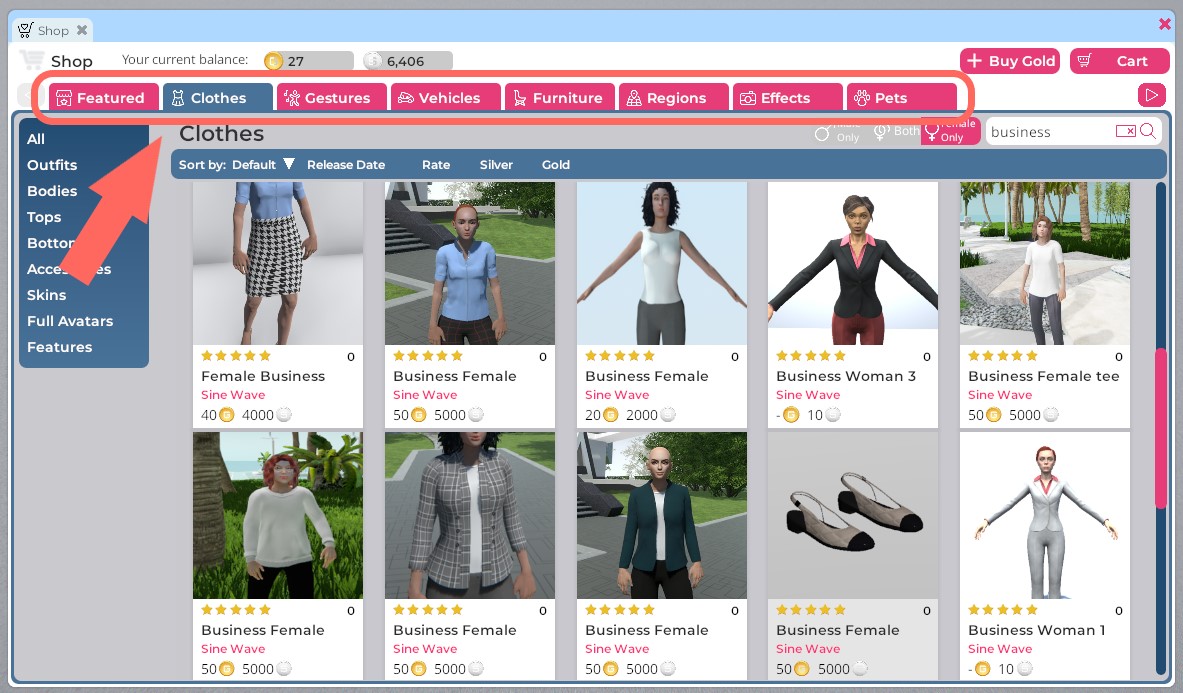
Highlighted: The Sinewave Shop category tabs.
Along the top edge of the Sinewave Shop window, you'll see several category tabs. Click these to explore the different types of content available for purchase. You'll find tabs devoted to Clothing, Vehicles, Furniture, and more.
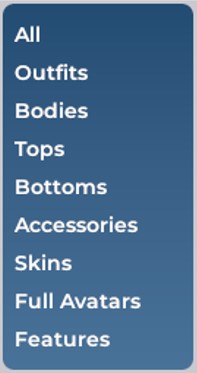
Pictured: The Clothes subcategory menu.
When you click on a category tab, you'll see a subcategory menu appear in the left corner of the Sinewave Shop window. You can use this to refine your search even further.
Searching for items

Pictured: The Sinewave Shop search field.
Each category tab includes a search field. When searching within the Clothes category, you can also specify whether you want to see items intended for masculine avatars, items intended for feminine avatars, or both.
Previewing clothing items
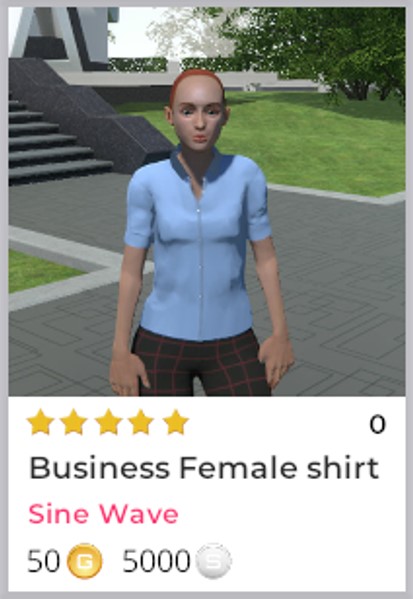
Pictured: A clothing item in the Sinewave Shop.
When you find a clothing item that you want to learn more about (such as the shirt pictured above), click on the item image in the Sinewave Shop window. If the item is compatible with your current avatar, you'll be given a chance to "try on" the item in real time.
In order for the preview window to work, the preview item must be compatible with your current avatar. If you are wearing an animal avatar, for example, you will not be given the option to preview human clothing. Likewise, if you are wearing a feminine avatar, you may not be given the option to preview clothing or shoes rigged to fit masculine avatars.
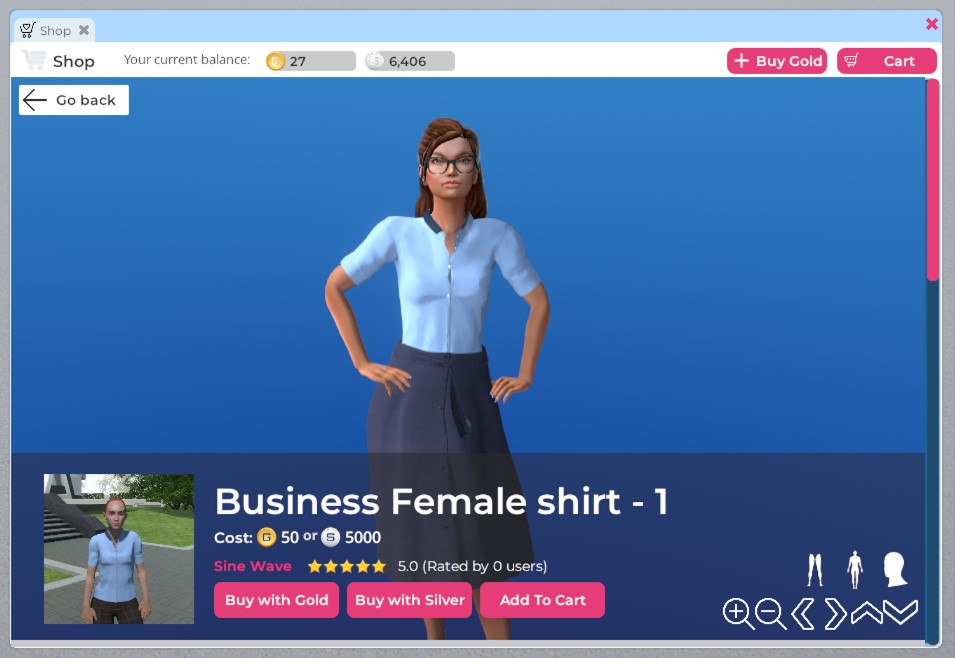
Pictured: A female avatar trying on a new shirt.
Your avatar will appear in the preview window wearing the chosen clothing item. You'll see the cost in Silver and Gold currency listed, as well as the item's review score and its creator. Scrolling down will reveal item variations, if available.
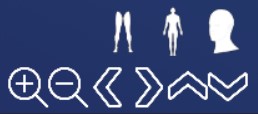
Pictured: The preview window camera controls.
You can use the camera controls located in the bottom right corner to inspect your avatar from all angles.
| Button | Function |
|---|---|
| Legs/feet zoom | Camera will focus on the avatar's feet. |
| Body zoom | Camera will focus on the avatar's body. |
| Head zoom | Camera will focus on the avatar's head/face. |
| Zoom in | Camera will zoom in closer to the avatar. |
| Zoom out | Camera will pull back from the avatar. |
| Rotate left | The avatar will rotate left. |
| Rotate right | The avatar will rotate right. |
| Pan up | The camera will pan upward. |
| Pan down | The camera will pan downward. |
Completing your purchase
Once you're satisfied with the way the item looks, you can purchase it directly by clicking the Buy button. You will be asked to confirm your purchase. If the item is an article of clothing, you'll be given the option to wear the item immediately or file it away in your Inventory.
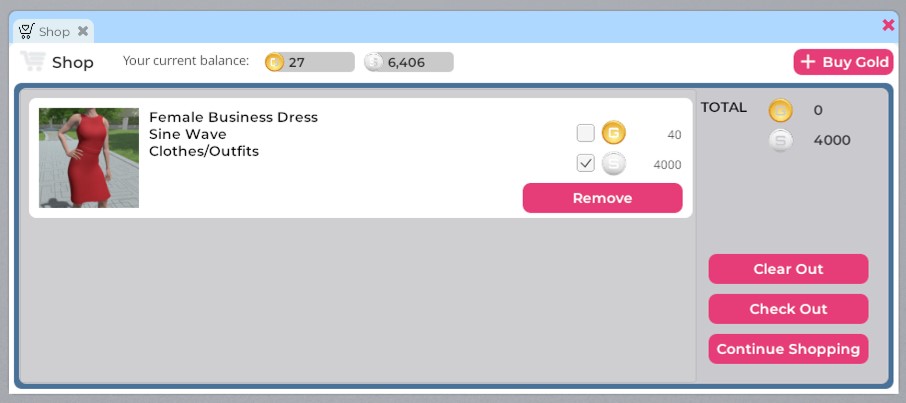
Pictured: The Sinewave Shop checkout screen.
If you prefer, you can add the item to your shopping cart by clicking the Add To Cart button. Once you're ready to check out, you can click the Cart button in the top right corner of the Sinewave Shop window, or click the shopping cart icon in your top toolbar. Both will take you to the same checkout window, where you can review your shopping cart, change the type of currency you want to spend (if applicable), and finalize your purchase.
Opening bundles
Some items come packaged in bundles. Bundles can contain multiple items, and will need to be unpacked before you can access their contents.
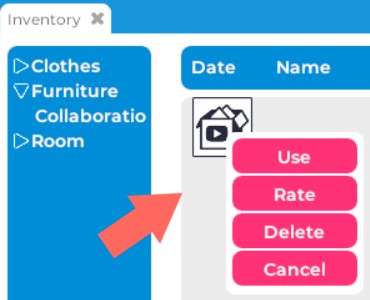
Highlighted: The location of the Use button.
To open a newly purchased bundle, follow these steps.
- Click the Inventory button located in the bottom toolbar. This will launch the Inventory window.
- In the Inventory window, locate the bundle you want to open and click on it. In the action menu that appears, click the Use button.
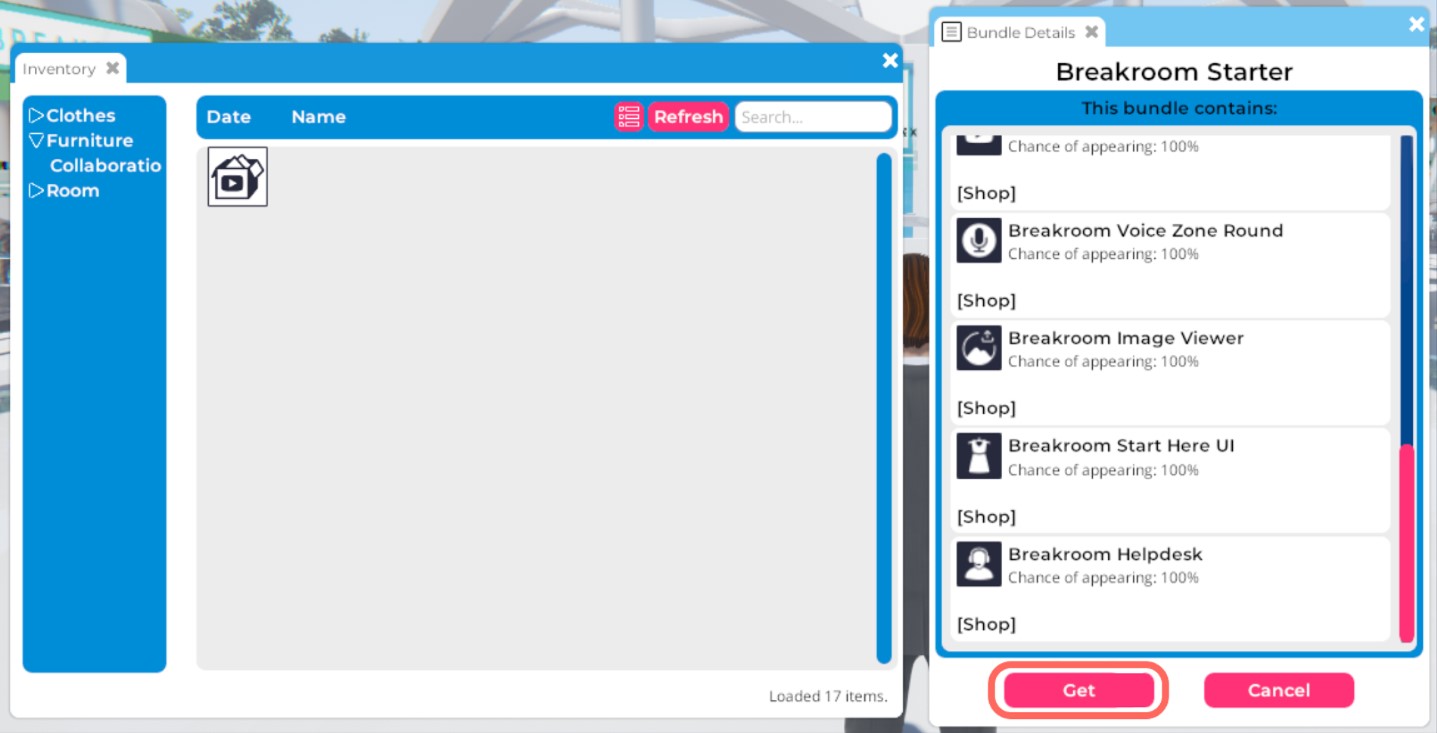
Highlighted: The location of the Get button.
A second window will appear, containing information about the items inside the bundle. Click the Get button at the bottom of this second window. This will extract the items into your Inventory.