Moderator tools
Overview
Sinewave Campus's moderator tools offer event coordinators a virtual leg-up when it comes to attendee support and logistics. By accessing a single menu, you can message users as a whole or individually, teleport users to different locations within a Region, and field questions from audience members. You can also stream music and video to create a unique multimedia experience.
Accessing the moderator controls
Moderator tool permissions
Key event coordinators and stakeholders will have access to the moderator tools by default. This list includes:
- The World Owner
- World-level Administrators, Moderators, and Developers
- Region-level Owners, Administrators, and Moderators
This section of the documentation refers to these individuals collectively as "Moderators."
Launching the moderator tools
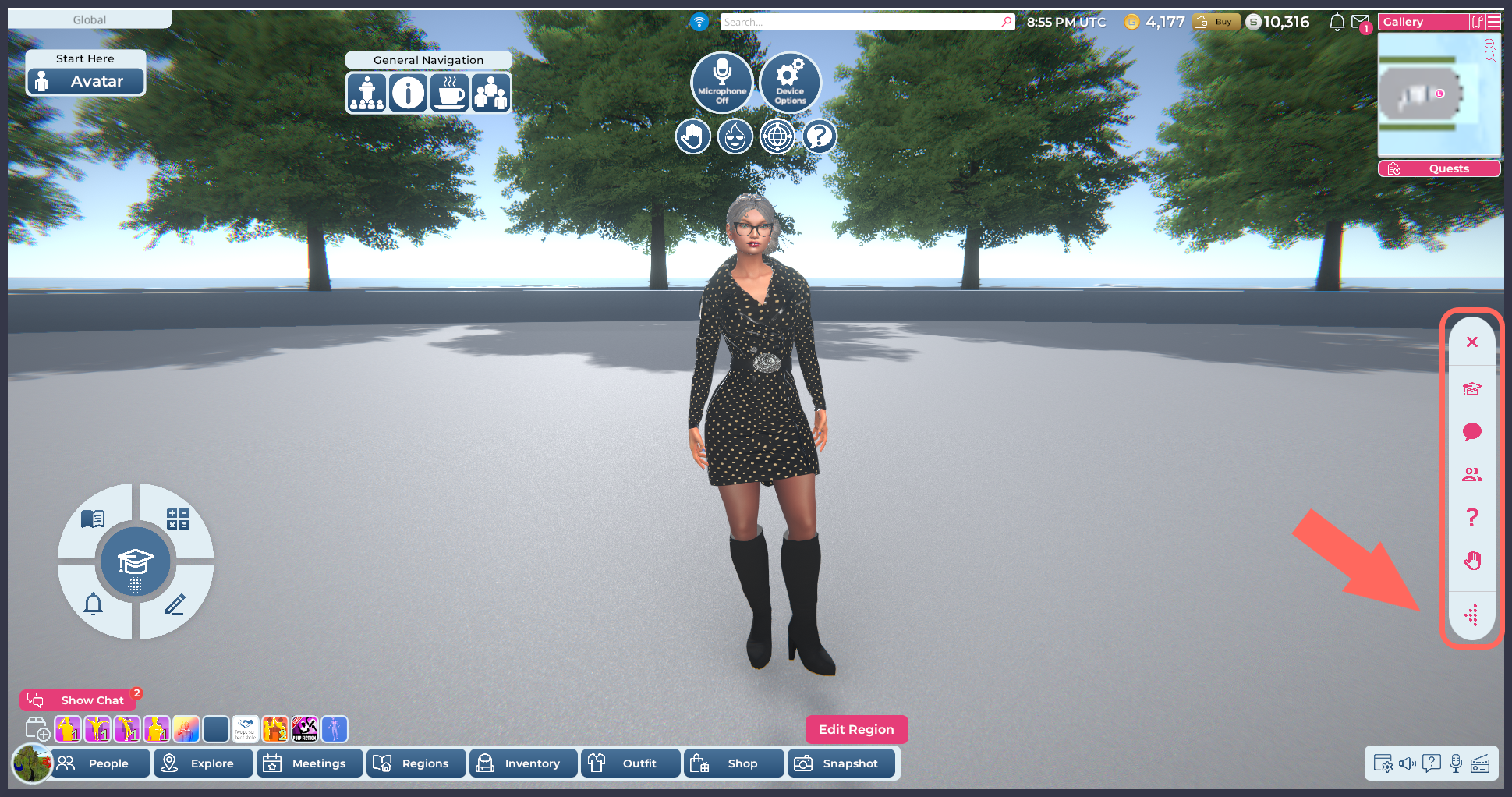
Highlighted: The expanded moderator tools, with an arrow pointing to the Maximize button.
To launch the moderator tools, click the Moderator tools/Key button located on the right side of the screen. To further expand the moderator tools menu, click the Maximize button located at the bottom.

Pictured: The fully expanded moderator tools.
Here's a brief overview of the moderator tools UI, with links to relevant information.
| Button | Purpose | |
|---|---|---|
| Close button | Closes the menu. | |
| Sinewave Campus Training Instructor Mode button | Allows Moderators to act as an Instructor on the Sinewave Campus for Training system. | |
| Broadcast messages button | Allows Moderators to send messages to one or more attendees in the Region. | |
| Crowd management button | Allows Moderators to teleport one or more users around the Region, and to control access to voice chat. | |
| Audience questions button | Allows Moderators to review audience questions submitted through the conference system. | |
| Raised hands button | Allows Moderators to identify users who have their hands raised. | |
| Presentation controls button | Allows Moderators to control signage and videos for presentations. | |
| Support requests button | Allows Moderators to address submitted support requests. (Note: This feature is currently unavailable.) | |
| Hidden UI button | Allows Moderators to reveal UI elements that are hidden from most users. | |
| Participation button | Allows Moderators to post a participation system URL for use in the Region, such as Slido. | |
| Audio stream button | Allows Moderators to switch the Region audio stream. | |
| Minimize button | Minimizes the expanded menu. |
We'll explore the moderator tools in more detail in the sections that follow.
The Moderator tools/Key button is normally visible only to the user types listed above. However, other users may see this button if you have enabled a password on the moderator tools to make them more broadly accessible. If you would like to enable a password as part of your event security or logistics plan, please contact our Customer Success Team for more information.