# Region settings

## Overview

The Region Information window can be viewed by anyone, and contains useful information for Region visitors. Users with advanced [World-](https://docs.breakroom.tech/opening-the-doors/creating-and-managing-user-accounts/world-level-user-permissions) or [Region-level](https://docs.breakroom.tech/opening-the-doors/creating-and-managing-user-accounts/region-level-user-permissions) permissions can also find Region access, user moderation, and media tools in this window.

{% hint style="info" %}
World Owners and World Administrators can [enable and disable parts of the UI](https://docs.breakroom.tech/creating-custom-experiences/ui-customization-options) via the [Dashboard](https://docs.breakroom.tech/building-new-worlds/breakroom-dashboard-tour). You may not have access to every function described in this section.
{% endhint %}

## Opening the Region Information window

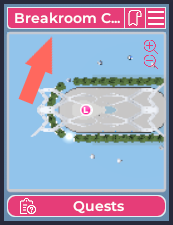
<figure><img src="https://1679086873-files.gitbook.io/~/files/v0/b/gitbook-x-prod.appspot.com/o/spaces%2F5gOE0ivmDtuXfHroTVSx%2Fuploads%2FCKIpbFuIuDTgPZDdS0kv%2FRegion_Settings_001.png?alt=media&#x26;token=b229d336-5290-4205-a263-0bc2bd2d363a" alt="A closeup of the mini map. An orange arrow points to the location of the Region Information button." width="130"><figcaption><p>Highlighted: The location of the Region Information button.</p></figcaption></figure>

You can open the Region Information window by clicking the **Region Information button** located above the in-world [mini map](https://docs.breakroom.tech/getting-started/ui-tour#the-mini-map). This button will be labeled with the name of the Region itself, which may be abbreviated.

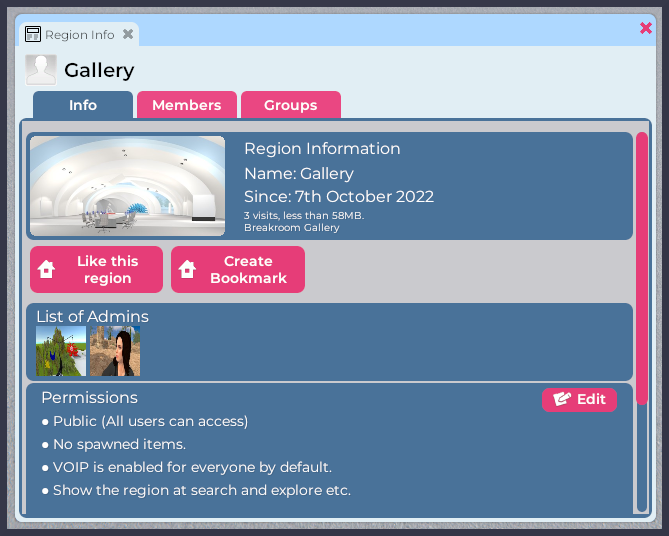
<figure><img src="https://1679086873-files.gitbook.io/~/files/v0/b/gitbook-x-prod.appspot.com/o/spaces%2F5gOE0ivmDtuXfHroTVSx%2Fuploads%2Fdo96qSFdGmoK1cbtvuWS%2FRegion_Settings_002.png?alt=media&#x26;token=006115b9-d8ff-4749-bdb5-769121ffe4e0" alt="A screenshot of the Region Information window. This window lists information about the Region, its Administrators, and its current permissions." width="502"><figcaption><p>Pictured: An example Region Information window.</p></figcaption></figure>

Users can access this window in any Region where the mini map is [enabled](https://docs.breakroom.tech/creating-custom-experiences/ui-customization-options). In addition to reviewing the Region's name, description, and permissions settings, users can also "Like" the region or create a [bookmark](https://docs.breakroom.tech/exploring-breakroom/bookmarks-and-teleport-invites) so they can easily return. The Region Owner and Administrators are identified in the **List of Admins** section, giving users a way to reach out for assistance.

## Changing Region settings and permissions

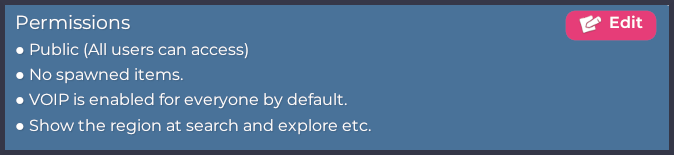
<figure><img src="https://1679086873-files.gitbook.io/~/files/v0/b/gitbook-x-prod.appspot.com/o/spaces%2F5gOE0ivmDtuXfHroTVSx%2Fuploads%2FUpS1oZL4XsqiFzIT5p5s%2FRegion_Settings_003.png?alt=media&#x26;token=2694be70-86b8-4664-b66a-8126e87d9ffb" alt="A closeup of the Permissions panel in the Region Information window. In addition to listing the Region&#x27;s current permissions, an Edit button is located in the top right corner." width="506"><figcaption><p>Pictured: The Permissions panel of the Region Information window. Note the Edit button.</p></figcaption></figure>

In addition to the universal functionality described above, [Region Owners](https://docs.breakroom.tech/opening-the-doors/creating-and-managing-user-accounts/region-level-user-permissions) and [Region Administrators](https://docs.breakroom.tech/opening-the-doors/creating-and-managing-user-accounts/region-level-user-permissions) can access advanced Region settings by clicking the **Edit button** located in the Permissions panel.

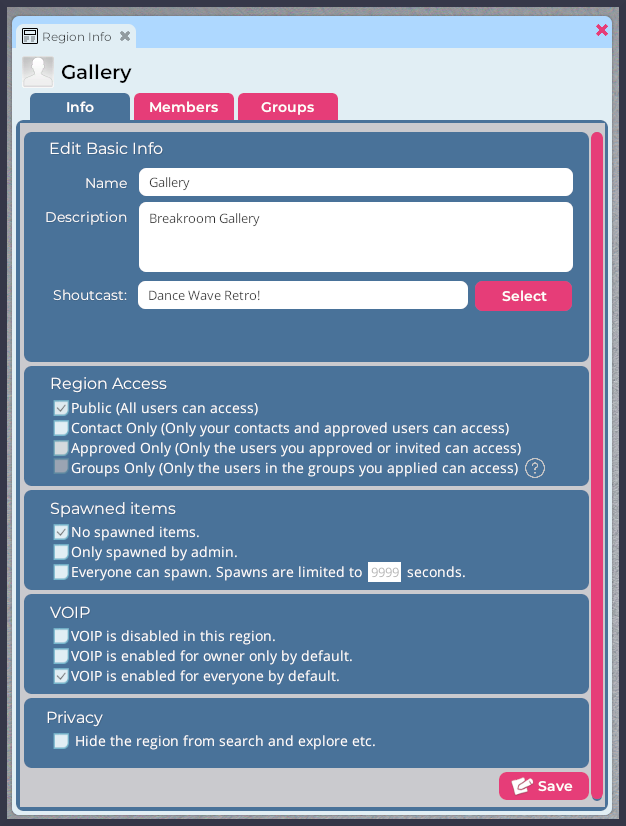
<figure><img src="https://1679086873-files.gitbook.io/~/files/v0/b/gitbook-x-prod.appspot.com/o/spaces%2F5gOE0ivmDtuXfHroTVSx%2Fuploads%2FD0e7FkPapS5cS7CUMxNy%2FRegion_Settings_004.png?alt=media&#x26;token=020d3a73-2d44-4f0d-9cfb-928b61a56609" alt="A screenshot of the Region settings tab available to Region Owners and Region Administrators. Options listed in this window are described below." width="313"><figcaption><p>Pictured: An example of the Region settings available to Region Owners and Region Administrators.</p></figcaption></figure>
Here team members can:

* Edit basic information about the Region, such as its name and description
* Choose a Region-wide [audio stream](#region-wide-audio-streams), or turn it off
* Control who can [access](#controlling-region-access) the Region
* Control who can spawn items, and how long those items will exist in the Region before they are automatically deleted
* Control who can use [voice chat](https://docs.breakroom.tech/getting-started/using-the-conference-system#voice-chat), or [disable voice chat altogether](https://docs.breakroom.tech/running-your-event/understanding-the-conference-system/voice-chat-and-spatial-audio)
* Control whether the Region shows up in search or can be found via the [Explore window](https://docs.breakroom.tech/creating-and-managing-regions#hiding-featured-regions)

Most of these advanced settings can be enabled by checking the box beside the setting and then clicking the **Save button**. To disable a setting, uncheck the relevant box and then click the **Save button**.

For more detailed information about Region access settings, please review the [relevant section](#controlling-region-access) on this page.

## Region-wide audio streams

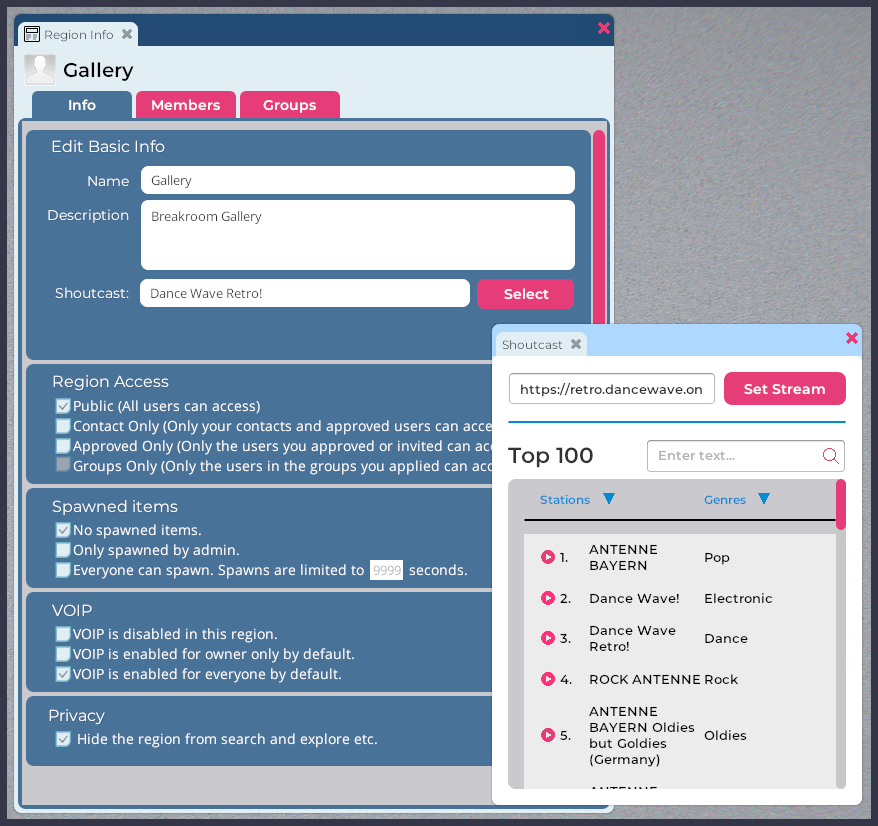
<figure><img src="https://1679086873-files.gitbook.io/~/files/v0/b/gitbook-x-prod.appspot.com/o/spaces%2F5gOE0ivmDtuXfHroTVSx%2Fuploads%2FEzVCFEhEkpJnmoKtJ2Gu%2FRegion_Settings_005.png?alt=media&#x26;token=816b6d3c-543a-444e-aed4-d8a2ca38b8d1" alt="A screenshot of the Region Information window alongside the audio stream selection menu. Multiple audio streams are listed." width="563"><figcaption><p>Pictured: The Region Information window audio stream selection menu.</p></figcaption></figure>

Using the Region Information window, [Region Owners](https://docs.breakroom.tech/opening-the-doors/creating-and-managing-user-accounts/region-level-user-permissions) and [Region Administrators](https://docs.breakroom.tech/opening-the-doors/creating-and-managing-user-accounts/region-level-user-permissions) can enable a Region-wide audio stream. This stream will play automatically for users upon entry to the Region, and can be controlled using the audio stream and volume controls located in the [settings toolbar](https://docs.breakroom.tech/getting-started/ui-tour#the-settings-toolbar).

### Enabling an audio stream

To enable a Region-wide audio stream, follow the steps below.

1. Log in to your Breakroom World and navigate your avatar to the Region you would like to edit.
2. Click the **Region Information button** located above the mini map.
3. Click the **Edit button** in the Permissions panel.
4. Click the **Select button** next to the Shoutcast field.
5. In the menu that opens, click on one of the listed **streams** to select it. You can also search for a stream using the **search field**. When you click on a stream, its address will appear in the stream field at the top of the menu.
   1. Alternatively, you can enter an **audio stream address** directly into the stream field.
6. Click the **Set Stream button**. This will return you to the Region Information window.
7. Click the **Save button**.

You can also enter a known audio stream address using the Breakroom [moderator tools](https://docs.breakroom.tech/running-your-event/moderator-tools).

{% hint style="info" %}
If you can't immediately hear your chosen audio, try toggling the stream. You can do this by clicking the **Radio icon** in the [settings toolbar](https://docs.breakroom.tech/getting-started/ui-tour#the-settings-toolbar) several times.
{% endhint %}

{% hint style="warning" %}
The streams listed in the Region Information window are created and maintained by independent entertainment companies. Breakroom is not affiliated with any of these third parties, and cannot alter or endorse any station's content.
{% endhint %}

### **Disabling an audio stream**

To disable an active Region-wide audio stream, follow these steps.

1. Repeat steps 1-4 [above](#enabling-an-audio-stream).
2. In the menu that opens, select and delete the current audio stream address.
3. Click the **Set Stream button**. This will return you to the Region Information window.
4. Click the **Save button**.

You can also enter a known audio stream address or delete  using the Breakroom [moderator tools](https://docs.breakroom.tech/running-your-event/moderator-tools).

## Controlling Region access

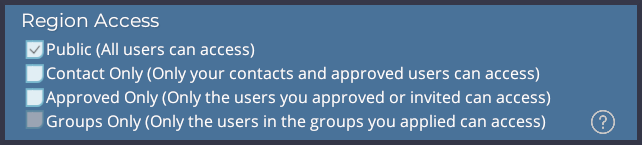
<figure><img src="https://1679086873-files.gitbook.io/~/files/v0/b/gitbook-x-prod.appspot.com/o/spaces%2F5gOE0ivmDtuXfHroTVSx%2Fuploads%2FPQiqcLI7e6h4lATk986H%2FRegion_Settings_006.png?alt=media&#x26;token=6f1cdcc6-4ca5-4dea-8691-d6d19f24a56a" alt="A closeup of the Region Access panel in the Region Information window. Four types of Region access are listed here, and are described in great detail below." width="482"><figcaption><p>Pictured: The Region Access panel of the Region Information window.</p></figcaption></figure>

Regions can either be open to the public or offer various degrees of controlled access. When it comes to letting users visit a Region, your options are:

* Public: Any user in the World can access your Region
* Contact Only: All users listed in the Region Owner's [People list ](https://docs.breakroom.tech/exploring-breakroom/networking-with-other-users/people)*and* whitelisted users can access the Region
* Approved Only: *Only* whitelisted users can access the Region
* Groups Only: *Only* users in whitelisted [groups ](https://docs.breakroom.tech/exploring-breakroom/networking-with-other-users/groups)can access and control the Region

To select a Region access type, follow these steps.

1. Log in to your Breakroom World and navigate your avatar to the Region you would like to edit.
2. Click the **Region Information button** located above the mini map.
3. Click the **Edit button** in the Permissions panel.
4. Scroll down to the Region Access panel, and check the **box** beside the access type you prefer.
5. Click the **Save button.**

For detailed information about each Region access type, please review the following [sections](#contact-only).

## Approving Region members

Some Region access types require visitors to be approved (or whitelisted). To do so, please refer to the following instructions.

### Approving users

1. Log in to your Breakroom World and navigate your avatar to the Region you would like to edit.
2. Click the **Region Information button** located above the mini map.
3. Click on the **Members tab** in the Region Information window.&#x20;
4. Click the **Add Members button** to open the "Add new members" dialog box. Locate the user you want to whitelist by using the **search field**, and then click the **Add button** beside their name.&#x20;

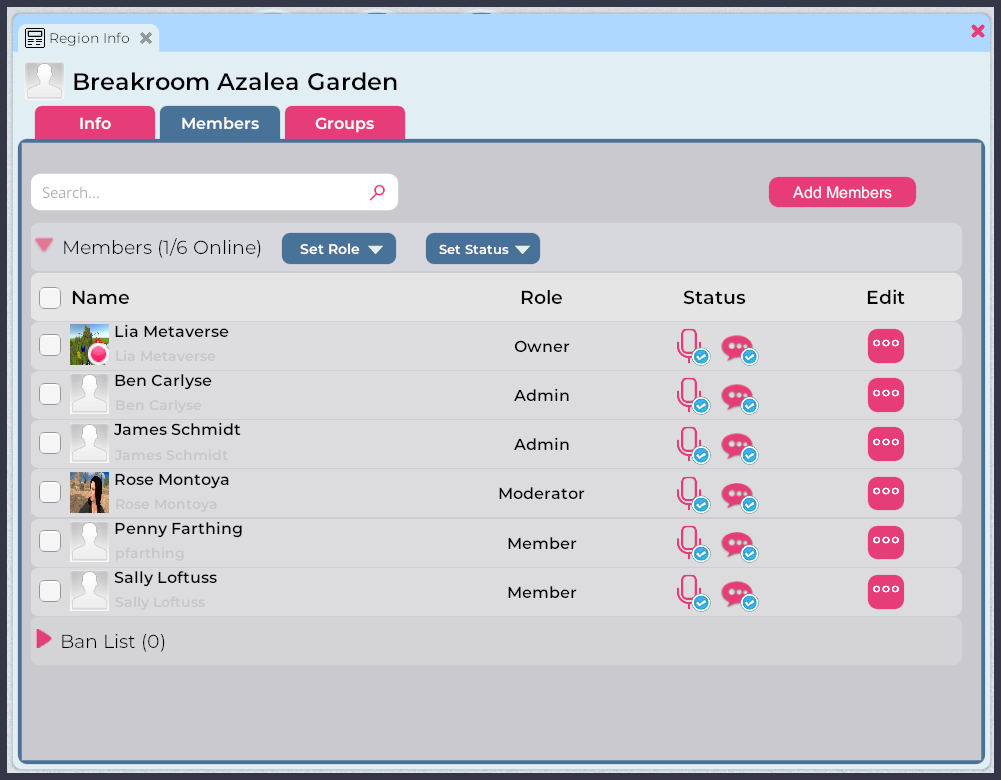
<figure><img src="https://1679086873-files.gitbook.io/~/files/v0/b/gitbook-x-prod.appspot.com/o/spaces%2F5gOE0ivmDtuXfHroTVSx%2Fuploads%2FMaZApdWtVGRp274I9aIu%2FRegion_Settings_007.png?alt=media&#x26;token=3142a3f6-2c62-4173-a8d7-a732cbaf0df7" alt="A screenshot of the Region Information window > Members tab, with six members listed." width="563"><figcaption><p>Pictured: The Region Information window > Members tab.</p></figcaption></figure>

### Removing approved users

To remove a user from the Region members list, follow these steps.

1. Log in to your Breakroom World and navigate your avatar to the Region you would like to edit.
2. Click the **Region Information button** located above the mini map.
3. Click on the **Members tab** in the Region Information window, and use the **search field** to search for the user's name.
4. Once you locate the user you want to remove, click the **Edit button** located to the right of their name. In the action menu that appears, click **Delete**.

## Region access types <a href="#contact-only" id="contact-only"></a>

### Contact Only

By making a Region "Contact Only," you are limiting access to the contacts in the Region Owner's [People list](https://docs.breakroom.tech/exploring-breakroom/networking-with-other-users/people) and specific users [approved](#approving-region-members) (or whitelisted) to visit the Region.

### Approved Only

By making a Region "Approved Only," you are limiting access to only those users included in your [Region members list](#approving-region-members). No other users will be allowed to enter the Region.&#x20;

### Groups Only <a href="#groups-only" id="groups-only"></a>

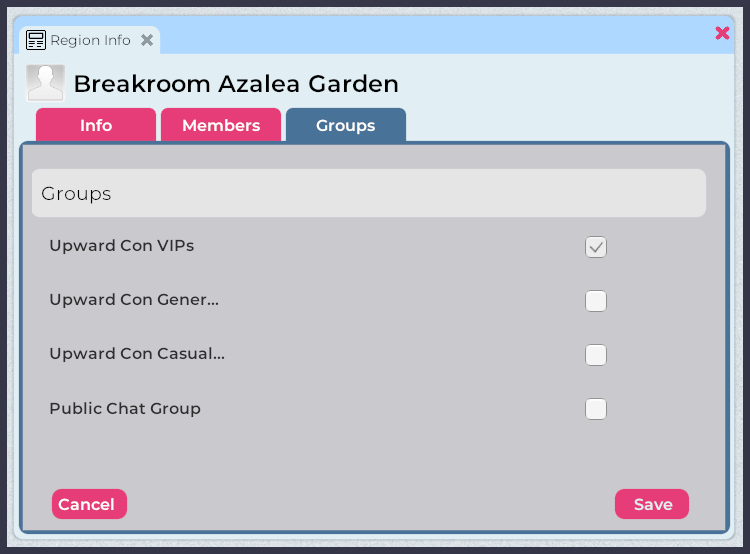
In the Region Information window, you'll notice that the "Groups Only" Region access option is grayed out, and therefore unclickable. In order to restrict Region access to one or more groups, you will need to first [join ](https://docs.breakroom.tech/exploring-breakroom/networking-with-other-users/groups#finding-and-joining-existing-groups)or [create](https://docs.breakroom.tech/exploring-breakroom/networking-with-other-users/groups#creating-a-group) those groups.

<figure><img src="https://1679086873-files.gitbook.io/~/files/v0/b/gitbook-x-prod.appspot.com/o/spaces%2F5gOE0ivmDtuXfHroTVSx%2Fuploads%2FstfSZe5GhmKblu3fd5cA%2FRegion_Settings_008.png?alt=media&#x26;token=07cebf89-f891-4cc8-ab7d-7821fb9bedfe" alt="A screenshot of the Region Information window > Groups tab, with four groups listed." width="563"><figcaption><p>Pictured: The Region Information window > Groups tab.</p></figcaption></figure>

To limit Region access to one or more groups, you can then follow these steps.

1. Log in to your Breakroom World and navigate your avatar to the Region you would like to edit.
2. Click the **Region Information button** located above the mini map.
3. Click on the **Groups tab** in the Region Information window. This tab will initially appear empty; to populate it with your groups, click the **Manage button** located at the bottom.
4. Check the **box** beside each group you want to offer Region access.
5. Click the **Save button.**
6. Click on the **Info tab**, and then the **Edit button.** You will see that Region access is now restricted to "Groups Only."

{% hint style="warning" %}
When a Region is set to "Groups Only," the group member lists will override the Region's existing members list, *including any region members with* [*advanced permissions*](https://docs.breakroom.tech/opening-the-doors/creating-and-managing-user-accounts/region-level-user-permissions)*.*

This means that only *Group* Administrators, *Group* Moderators, *Group* Developers, etc. will be able to exercise their powers over the Region as a whole. Additionally, only group members will be permitted to visit the Region. Any users in the Region member list will be ignored.

To disable group control over the Region, [select](#controlling-region-access) a different Region access option. Doing so will restore access and advanced permissions to any users in the Region members list.
{% endhint %}

## Muting and banning Region visitors

In order to mute or ban a Region visitor, that user must either be:

1. Currently located within the Region (with the *Guest* user role)
2. Included in the Region members list (with the *Member* user role or better)

If the user is not currently located within the Region, but you would like to preemptively mute or ban them, you will first need to [whitelist](#contact-only-1) the user. You can then edit that user's status using the following methods.

### Muting visitors

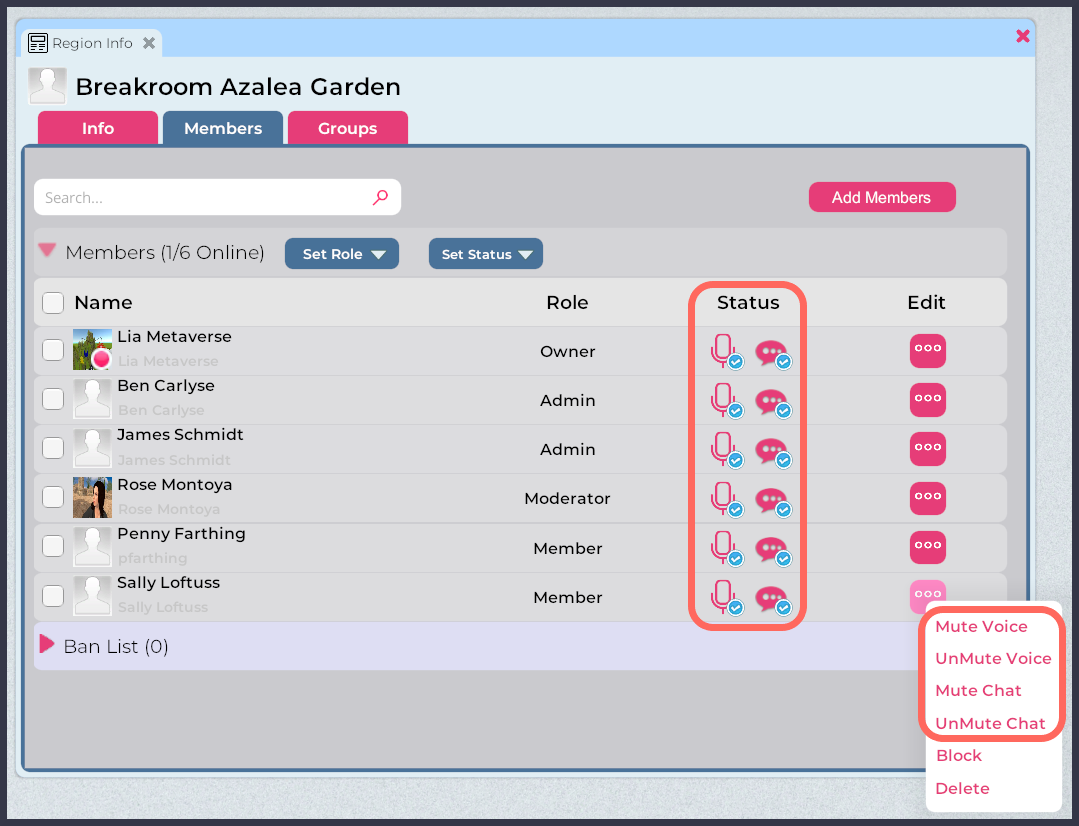
<figure><img src="https://1679086873-files.gitbook.io/~/files/v0/b/gitbook-x-prod.appspot.com/o/spaces%2F5gOE0ivmDtuXfHroTVSx%2Fuploads%2FvXD0a6F49CiKKGpDHIrC%2FRegion_Settings_009.png?alt=media&#x26;token=2e0a6a91-fcf4-43e0-9669-5714bf6b3cda" alt="A screenshot of the Region Information window > Members tab, with the location of the Status icons and the Edit button action menu highlighted." width="563"><figcaption><p>Highlighted: The location of the Status icons and the Edit button action menu.</p></figcaption></figure>

To mute a single Region visitor (on either text or voice chat), follow these steps.

1. Log in to your Breakroom World and navigate your avatar to the Region you would like to edit.
2. Click the **Region Information button** located above the mini map.
3. Click on the **Members tab** in the Region Information window, and use the **search field** to search for the user's name.
4. Once you locate the user you want to mute, you can either:
   1. Click the **Edit button** located to the right of the user's name. In the action menu that appears, click **Mute Voice** and/o**r Mute Chat.**
   2. Toggle the **Microphone icon** and/or the **Speech bubble icon** located to the right of the user's name. When the blue check mark disappears, the user is muted.

To restore communication to a previously muted user, repeat steps 1-4 above, and either:

1. Click the **Edit button** located to the right of the user's name. In the action menu that appears, click **Unmute Voice** and/o**r Unmute Chat.**
2. Toggle the **Microphone icon** and/or the **Speech bubble icon** located to the right of the user's name. When a blue check mark appears, the user can communicate over voice or text chat.

To mute multiple users at once, follow these steps.

1. Log in to your Breakroom World and navigate your avatar to the Region you would like to edit.
2. Click the **Region Information button** located above the mini map.
3. Click on the **Members tab** in the Region Information window, and locate the users you want to mute. Check the **box** located to the left of each user's name.
4. Click the **Set Status drop-down menu,** and then click **Mute Voice** and/o**r Mute Chat.**

To restore communication to multiple muted users, repeat steps 1-3 above. Then, click the **Set Status drop-down menu**, and click **Unmute Voice** and/o**r Unmute Chat.**

## Banning visitors

To ban a single user from entering your Region, follow these steps.

1. Log in to your Breakroom World and navigate your avatar to the Region you would like to edit.
2. Click the **Region Information button** located above the mini map.
3. Click on the **Members tab** in the Region Information window, and use the **search field** to search for the user's name.
4. Once you locate the user you want to ban, click the **Edit button** located to the right of the user's name. In the action menu that appears, click **Block.**

To undo a ban, repeat steps 1-3 above. The user will be filed under the Ban List. Click the **Edit button** located to the right of the user's name. In the action menu that appears, click **Unblock.**

To ban multiple users at once, follow these steps.

1. Log in to your Breakroom World and navigate your avatar to the Region you would like to edit.
2. Click the **Region Information button** located above the mini map.
3. Click on the **Members tab** in the Region Information window, and locate the users you want to ban. Check the **box** located to the left of each user's name.
4. Click the **Set Status drop-down menu,** and then click **Block.**

To undo a ban for multiple users, repeat steps 1-3 above. Banned users will be filed under the Ban List. Check the **boxes** beside the users you want to unban, click the **Set Status drop-down menu**, and then click **Unblock.**